


FAQs
We run on a two-week cycle from when work is done, to when it is billed, to when payment is collected. For us, a week runs Monday through Sunday, with Sunday being the final day.
As an example, a work period that began on January 26, 2026 will close on February 1, 2026. On the first business day of the following week, we will review and prepare an invoice to be distributed to you for any work that was done on your account, regardless of whether or not you have available trust funds to cover the balance. We do this because we want you to see what’s happening on your account in relation to billing, and if needed, you have time to raise questions to us that we can review and answer for you. Your invoice will be shared via email with a downloadable copy, and it will also be stored in the Clio for Clients portal for future reference.
We will begin collecting payments for invoices starting on Friday after an invoice was issued and conclude collection no later than Sunday. Generally, all payments are collected on Fridays, but system outages, staffing levels, or other factors can delay collection over the weekend.
We send an invoice out any time there is work done on a client’s case, regardless of any credits on their account. We do this for a few reasons: First, we are required to by rules of professional conduct and we also agreed to do it in your services agreement. Second, we want you to have the opportunity to review your billing before a payment is made or collected.
Invoices are broken up into 3 sections that contain important information. We’ll go through each section in detail here.
- The Header: The header is the section at the very top of the invoice and contains the following information: An invoice number for reference, the date the invoice was issued, our address for billing matters, and identifying information about the account the invoice is issued to, which will include the client name and mailing address.
- Current Charges: Just below the header are the current charges for the invoice. We issue invoices for each matter than you have open, but in the rare event that multiple matters are merged onto one invoice, this section may be broken into multiple parts with your matter number (e.g. 00001-Doe) flagging which charges are applicable to it.Each invoice will break current charges into two sections: Services and Expenses. Services are the charges related to legal work performed by our Firm and will include things like drafting legal documents, communications with you and any opposing parties/their attorney, and court appearances. Expenses are fixed costs relating to the administration of your case and will include things like court filing fees, constable fees, transcription services, etc.
Each line item in the current charges section will have contain various bits of information as shown by the columns. We’ll explain what each column means here:
Type: This is noting whether or not the line item is a service or an expense.
Date: This is the date the activity in question was created and should generally align with the date something occurred. If you had a court appearance on January 9th, then there should be a corresponding entry for January 9th reflecting that work. Expenses are an exception to this, where the date will be based on when we actually received the invoice from the vendor.
Attorney: These are the initials of the person performing the work on your case so we can identify who did what work. Just a note – not everyone entering work on your case is an attorney. Paralegals, legal assistants, and other non-attorney staff doing work will also appear here.
Notes: This is a description of the work performed or the expense created.
Quantity: For any services, this is the amount of time it took to complete the activity and is expressed in tenths of an hour (0.1, equates to 6 minutes). For expenses, the quantity is generally 1.0 by default as expenses are fixed rates from third parties.
Rate: For services, this is the billable rate of the team member working on your case. For expenses, this is the amount charged by the third party for the cost of the expense.
Total: This is the total amount charged for the specific line item you’re looking at, where the total is the rate multiplied by the quantity. If your attorney billed you for 1.3 hours’ worth of time at a rate of $350.00, then the total would be $455.00 for the line item.At the end of the current charges section, there will be rundown of the current invoice charges which will include the subtotal (services + expenses), a listing of any credits applied to the invoice to adjust the subtotal, any payments submitted, and the total amount due after credits and payments.
- Detailed Statement of Account: This section gives you a 360-degree view of all your account and includes the current balance of your trust. This detailed statement of account has a few sections that may not appear on every invoice, but we’ll go over them in detail here:Other Invoices: This section is a listing of all the other invoices currently due on your account (if any). Each invoice will be listed showing the invoice number, when the invoice was originally due, the original amount owed, total payments received for each invoice, and the remaining balance owed. This section will not be visible on your invoice if you do not have any other invoices outstanding.
Interest on Other Invoices: This section lists the interest penalties that have accrued on invoices outstanding for more than 30 days. The columns here mirror the information in the “other invoices” section, but it’s important to note that the “due on” date for interest is always shown 30 days out. This is because interest accrues every 30 days, and they payment system processes interest as due on a NET30 timeline, while invoices are due on receipt.
Current Invoice: This section is a summary restatement of the current charges section. It lists invoice number, due date, amounts due, payments received, and the balance due.Just beneath these three items will be a subtotal for all outstanding balances, and then the total outstanding balance for your matter.
Trust Balance: The last section of the Detailed Statement of Account is your trust balance. Your trust balance is the final line item listed as IOLTA Trust Balance and represents all money held in trust for the specific matter the invoice was issued for. If you have multiple matters open with different invoices, the trust balances may be different between invoices. Generally, the lowest amount that appears in the trust balance will be the amount designated for your security deposit per your legal services agreement (commonly $500 or $750). Any amounts over your security deposit reserve can be applied to invoices for balances due.
We collect payments in the following order:
1) Direct payments from the client (check, cash, credit card, etc). A direct payment is anything you submit for the invoice.
2) Collection of available trust funds. If you have funds on your account, we will apply them to the outstanding balance of your invoice. Note that you may not necessarily have enough funds on your account to cover the entire balance of an invoice, and you may need to supply additional payment.
3) Automatic/pre-authorized payment against payment profile: If full payment is not submitted and trust funds don’t cover the balance of an invoice, we will charge the balance owed against the payment method you provided us when you retained our Firm.
Generally, notices relating to outstanding balances are frozen while a payment is pending, but there are occasions where a payment may be received and a notice still gets sent out either by our billing team or our payment system via automated notice. This generally happens because a submitted payment hasn’t processed yet and posted to an account, or the payment hasn’t been received by the time the notice was sent. Any invoice with a pending payment applied still shows as a balance due until the payment clears.
If you have any questions regarding whether a payment was received, please email billing@familylawma.com.
Our Firm partners with Affirm to provide flexible payment options for large bills and other payments that may not be manageable in the regular payment timeline. Payment terms offered through Affirm can vary from a couple of months up to 2 years based on what you need.
To use Affirm, you can follow these steps:
- Click on the link to pay in your invoice notice or monthly account statement. If you need a new link, you can request one from billing@familylawma.com
- In the payment window, look underneath the invoices listed at the top. You’ll see a button that says “other methods” next to “debit” – click “other methods” to expand your options for payment.
- In the expanded options, you’ll see a downward facing arrow (v shape) next to eCheck – click that once more to access “Pay later.” Click “pay later” to select Affirm.
- Enter your information in the fields on the billing page and when complete, click the blue “Continue with Pay Later” button to open Affirm’s application process.
Once you’ve reached Affirm’s payment page, they will guide you through the rest of the application process for your requested payment amount.
Keep in mind that Affirm requires access to your credit history for the application to process. They use what’s called a “soft pull” which does not affect your credit score. If you have locked your credit scores at all, you will need to unlock them prior to starting the application process.
All applications for payment submitted to Affirm are subject to their terms and conditions for approval. The Firm cannot and does not have any say in approval for payments via Affirm.
If you’ve been approved for after pay with Affirm, any amounts approved will be forwarded to the Firm and applied to your outstanding balance automatically.
You will need to check in with Affirm on where/how to setup recurring payments through their platform for your payment plan.
O’Connor Family Law cannot pay your monthly payments due to Affirm on your behalf. Any amounts paid to O’Connor Family Law are applied to trust balances or new outstanding balances with our Firm or will be returned if your matter is closed.
Any time you need to deposit additional funds into your retainer, you can do so by clicking this link, mailing a check to O’Connor Family Law at 45 Lyman Street, #18, Westborough, MA 01581, or dropping off a cash payment in person at our offices (please don’t mail cash).
When submitting any payments through the online portal, please reference either the matter number (e.g. 01111-Doe), or the name of the client the payment is being submitted for. This helps with record keeping.
You can access all invoices on your account through the Clio for Client’s portal. Your portal username is the email you gave to the Firm (same email we send invoice notices to) when you retained services.
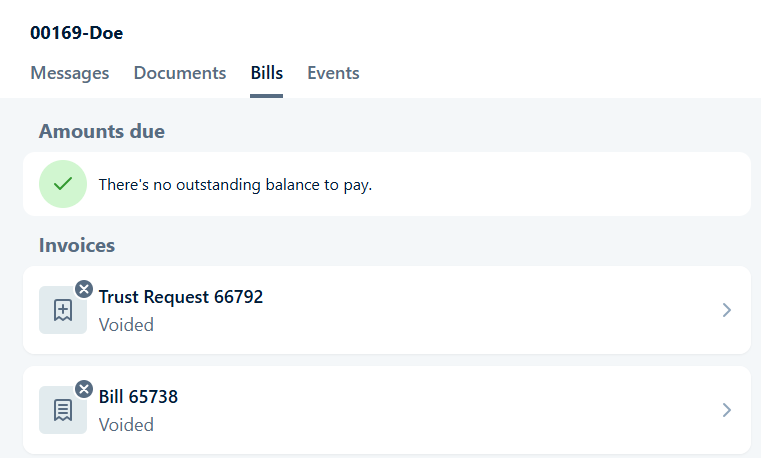
After logging into the client portal, select the matter you wish to view and then select the billing tab for your account history for outstanding invoices, as well as any other invoices and trust requests that have been associated with your account.
You can also request a copy of your invoice history by emailing billing@familylawma.com
You can double check if your invoice was paid by logging into your client portal and checking the “billing” tab. The client portal will have a complete invoice history for your account and will show which invoices have been paid or are currently outstanding. If you have more than one active case with the Firm, you can click or tap on the menu button in the top right of the portal and select “switch cases” to toggle between your active legal matters.
We accept credit and debit cards, personal checks, bank or cashier’s check, e-check, after pay via Affirm, and cash payments.
Payments can be submitted by you or a third party wishing to make a payment on your behalf.
You can call our offices between 9 am and 5 pm, Monday through Friday or email billing@familylawma.com to request a secure link.
Alternatively, if you are making a direct payment for an invoice that was issued to you, you can check off the box before submitting payment that will save the payment information, as shown in the image below.
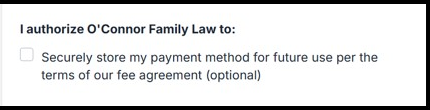
If this box is checked, the payment method submitted will be stored and used consistent with the automatic payment provisions of the associated client’s legal services agreement. Do not check this box if you do not intend to have your payment method used for auto-draft/pre-authorized payment for balances owed.
There can be a couple reasons for this.
First, any time a client asks for a case to be closed, especially if the request is sent to our billing team, we must notify the attorney responsible for the matter and get a case status update. The reason this is necessary is because if we have entered an appearance on a case, we are required to complete either a dismissal of the case, or, complete the withdrawal process. Both of these actions are required by the court and we cannot waive them. Until we are allowed to withdraw our appearance or the case is formally dismissed (depending on case circumstances), we must keep your account open and active according to the terms of your services agreement.
Second, once a case is approved and marked for closure, we perform an audit of the account to verify the accuracy of the trust funds. This process can take a few business days based on where your matter is in the queue of cases marked to close, but we generally try to have all matters resolved within 3 days so we can request trust funds be disbursed back to clients.
Finally, after the audits are performed, we send a notice to communication methods on file requesting preference on refund. If we don’t hear back from the client within 3 business days, we will send a check to the address we have on file. If you did not update us regarding your mailing address and did not reply to the request for refund preference, it’s possible the check is stuck/lost in the mail and will need to be reissued.
Yes. Any trust funds to which you are entitled, credits, and other deposits on your account are refundable after all balances owed have been paid.
When invoices are shared, they will be sent to the email you provided to the Firm when you retained services. Billing notices will look like the image below. 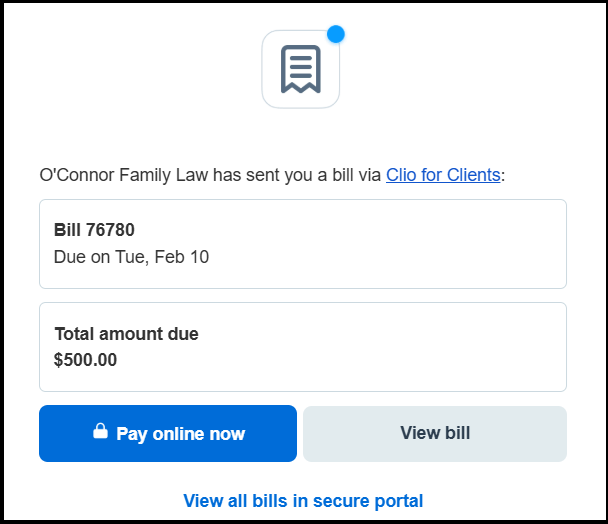
Clicking or tapping on the “view bill” button will download a copy of your invoice to your device and show all the services and expenses that are charged. You can click or tap the “view all bills in secure portal” text to open up the Clio for Clients portal, where you can log in and see your entire account history.
If you need to update the email you receive billing notices to, please contact billing@familylawma.com. Please note that updating your email will change your user log in for your Client Portal.
Outside of the information on this page, specific terms and conditions for billing on your account are controlled by your legal services agreement. A copy of your agreement should be available in your client portal, but if you can’t find it you can request a copy by emailing info@familylawma.com or calling our office during regular business hours.
Please send all billing inquiries to billing@familylawma.com. A member of our team will review your inquiry and follow up with you. You may also call our offices during regular business hours.
Please note that all inquiries may take a few business days to respond to based on volume and staffing.